How to Use WordPress as a Headless CMS
What It Means to Use WordPress as a Headless CMS
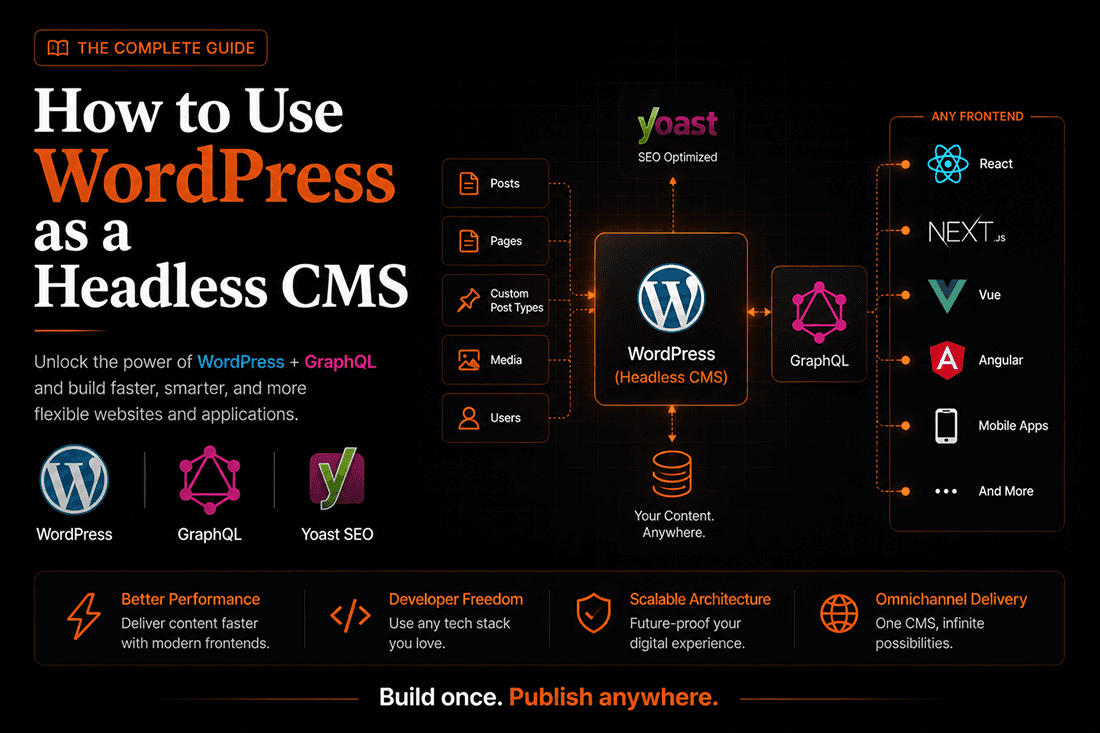
WordPress still powers a huge share of the web, but the way developers use it in 2026 has changed. Instead of letting WordPress control both the content and the design, many teams now run it as a headless CMS. That means WordPress handles writing, editing, and storing content, while a separate frontend framework handles how everything looks and loads for visitors.
In this guide you will learn how to use WordPress as a headless CMS from start to finish: the tools you need, how to expose your content with GraphQL, how to connect a modern frontend, and how to keep your SEO intact with Yoast. The goal is a setup that stays easy to write in and fast to load.
Traditional WordPress vs Headless WordPress
In a traditional install, WordPress does everything. It stores your posts and also renders the HTML pages using a PHP theme. In a headless setup, that second job is removed. WordPress becomes a content backend that sends data through an API, and a separate application built with a tool like React or Next.js turns that data into pages.
The word "headless" simply refers to removing the head, which is the presentation layer. The body, meaning your content and admin dashboard, stays exactly where your writers expect it.
When Headless WordPress Makes Sense
This approach is not for every project. It shines when you want top performance, when the same content needs to appear on a website plus a mobile app, or when your team already builds with JavaScript frameworks. If you run a simple brochure site and nobody on your team codes, a standard theme is still the sensible choice.
Why Choose Headless WordPress in 2026
Decoupling your backend from your frontend is more work than a classic theme, so it helps to be clear on what you get in return before you commit.
Benefits of a Decoupled Setup
Speed and Core Web Vitals
Modern frontend frameworks ship lean, pre-rendered pages instead of heavy theme templates loaded with plugin scripts. Faster pages help your Core Web Vitals scores, which feed directly into search rankings and conversions. If you want the reasoning behind picking a framework for this job, our post on why Next.js is the best framework for businesses breaks it down in plain terms.
Stronger Security
Because your public site no longer runs on the WordPress domain, the admin dashboard is shielded from most automated attacks. Visitors only ever touch your frontend, and the WordPress backend can sit behind extra access rules.
Omnichannel Content Delivery
Once your content is available through an API, you are no longer tied to one website. The same posts can feed a web app, a native mobile app, a digital kiosk, or an email system. You write once and publish everywhere from a single source of truth.
The Trade-offs to Weigh First
Headless comes with real costs. You now manage two environments instead of one, which means more hosting and more moving parts. Some page builder plugins that assume a normal theme will not work. Previewing drafts also takes extra setup, since WordPress cannot render your custom frontend on its own. Go in knowing these before you start.
The Tools You Need for a Headless WordPress Stack
A clean headless build comes down to three parts: the WordPress backend, the frontend framework, and a small set of plugins that connect them.
The WordPress Backend
Start with a standard WordPress install on reliable hosting. You do not need a fancy theme, since visitors will never see it. Keep the install lean, secure, and focused on content. This is where your writers log in and work every day.
The Frontend Framework
This is the application your visitors actually load. Next.js is the most common choice because it supports static generation, server rendering, and built-in SEO features. React, Astro, and Nuxt are also popular. The framework fetches content from WordPress and turns it into finished pages.
Core Plugins to Install
A few plugins do the heavy lifting of exposing your content cleanly:
- WPGraphQL turns your WordPress site into a GraphQL server so the frontend can ask for exactly the data it needs.
- Advanced Custom Fields lets you build custom content structures beyond default posts and pages.
- WPGraphQL for ACF exposes those custom fields inside your GraphQL schema.
- WPGraphQL Yoast SEO Addon sends your Yoast SEO data through GraphQL, which we cover in detail below.
How to Use WordPress as a Headless CMS, Step by Step
Here is the practical path from a fresh install to a working decoupled site.
Step 1: Set Up and Harden the WordPress Backend
Install WordPress on your host, then remove clutter you will not use. Deactivate the default theme scripts where possible, keep plugins minimal, and lock down the login page. Since this backend is only for editing, treat it as a private tool rather than a public site.
Step 2: Install WPGraphQL and Expose Your Content
Install and activate the WPGraphQL plugin. It adds a single endpoint, usually at /graphql, and a built-in explorer called GraphiQL where you can test queries live. This one plugin is what makes your content available to any frontend you choose.
Step 3: Add Custom Fields With ACF
Most real projects need more than a title and body. Use Advanced Custom Fields to add structured data such as author bios, product specs, or landing page blocks. Then use WPGraphQL for ACF so those fields show up in your GraphQL schema and can be queried like anything else.
Step 4: Connect a Next.js Frontend
Create a new Next.js project and store your WordPress GraphQL URL in an environment variable. Keeping the endpoint in an environment file rather than hard coding it makes the project safer and easier to deploy across staging and production.
Step 5: Query Content With GraphQL
With the endpoint in place, you can request exactly the fields you want in one call. A simple query to pull recent posts looks like this:
query LatestPosts {
  posts(first: 6) {
    nodes {
      title
      slug
      excerpt
      date
    }
  }
}
On the frontend, you send that query to your endpoint and render the result. A basic fetch in Next.js looks like this:
async function getPosts() {
  const res = await fetch(process.env.WORDPRESS_API_URL, {
    method: "POST",
    headers: { "Content-Type": "application/json" },
    body: JSON.stringify({ query: LATEST_POSTS }),
    next: { revalidate: 60 }
  });
  const { data } = await res.json();
  return data.posts.nodes;
}
That is the core loop of every headless WordPress site: write in WordPress, query with GraphQL, render in your framework.
REST API vs GraphQL: Which Should You Use?
WordPress ships with a built-in REST API, and GraphQL is added through WPGraphQL. Both can power a headless site, so the choice depends on how complex your content is.
When the WordPress REST API Fits
The WordPress REST API needs no extra plugin and is familiar to most developers. It works well for straightforward needs, like pulling a list of posts into another system. The downside is over-fetching: a single endpoint often returns far more data than you asked for, and complex pages may need several calls stitched together.
Why WPGraphQL Wins for Most Builds
GraphQL lets you request only the fields you need, from many content types, in one request. That reduces payload size and round trips, which keeps your frontend fast. It also gives you a typed schema and a live explorer, so building queries feels predictable. For most modern app-style projects with rich, related content, WPGraphQL is the better default. Many teams even use both, leaning on GraphQL for the interface and REST for simple background jobs.
Handling SEO With Yoast and GraphQL
SEO is where many headless projects quietly break. When WordPress no longer renders your pages, the meta tags that Yoast normally prints are gone unless you pass them through yourself. The fix is to expose Yoast data over GraphQL and render it in your frontend.
Install the WPGraphQL Yoast SEO Addon
Install Yoast SEO on the backend as usual so your editors keep their familiar meta title, description, and social preview controls. Then add the WPGraphQL Yoast SEO Addon, which adds a seo field to your schema. Now every SEO setting your team enters in WordPress becomes queryable data.
Query and Render Meta Tags in Next.js
With the addon active, you can pull the SEO block alongside your content:
query PostSeo {
  post(id: "hello-world", idType: SLUG) {
    seo {
      title
      metaDesc
      opengraphImage { sourceUrl }
    }
  }
}
Mapping Yoast Fields to Next.js Metadata
Next.js can turn that data into real page metadata using its generateMetadata function. You read the Yoast title and description from your query and return them so search engines and social platforms see the right tags on every page:
export async function generateMetadata({ params }) {
  const seo = await getPostSeo(params.slug);
  return {
    title: seo.title,
    description: seo.metaDesc
  };
}
This keeps SEO control in the hands of your writers while your fast frontend still ships correct tags. It is the piece that makes headless WordPress safe for search rankings rather than a risk to them.
Common Challenges and How to Solve Them
A few issues trip up almost everyone on their first headless build. Knowing them in advance saves hours.
Fixing CORS Errors
Because your frontend and backend live on different domains, the browser may block requests until you allow them. Add the correct CORS headers on the WordPress side so your frontend domain is trusted. This is usually the very first error you will hit, and it is quick to fix once you know to look for it.
Setting Up Preview and Draft Mode
Editors expect to preview unpublished drafts. Since WordPress cannot render your custom frontend, you connect its preview button to a secure route in your framework that fetches the draft and shows it. Next.js offers a draft mode feature built exactly for this.
Caching and Revalidation
Static pages are fast but can go stale. The clean solution is to rebuild a page only when its content changes, using a webhook from WordPress that triggers your frontend to refresh. If you already lean on automation tools, our comparison of Zoho Deluge and N8N for business automation shows how webhook-driven workflows like this fit together.
Is Headless WordPress Right for Your Project?
Using WordPress as a headless CMS gives you the writing experience your team already knows, paired with a frontend that is fast, secure, and flexible. The cost is added complexity: two environments, extra SEO wiring, and more careful caching. For content-heavy sites, product platforms, or brands that publish across many channels, that trade is well worth it. For a small static site, a normal theme still wins.
If you want polish on top of speed, browse our roundup of animated website libraries for Next.js and React to add motion without hurting performance. And if you would rather have this built for you, get in touch to talk through your project.
Frequently Asked Questions
Is headless WordPress good for SEO?
Yes, as long as you pass your meta data through to the frontend. Using Yoast with the WPGraphQL Yoast SEO Addon lets you keep full control of titles, descriptions, and social tags while serving fast, pre-rendered pages that search engines reward.
Do I need to know GraphQL to go headless?
Some GraphQL knowledge helps, but the learning curve is gentle. The WPGraphQL explorer lets you build and test queries visually, and most projects reuse a small number of queries once they are written.
How much does a headless WordPress site cost?
Costs vary because you run two environments: WordPress hosting plus frontend hosting. Many frontend platforms offer generous free tiers, so the main investment is development time rather than monthly fees.
Can I use WordPress headless without Next.js?
Absolutely. Next.js is popular for its SEO features, but React, Astro, Nuxt, and other frameworks all work. The WordPress backend does not care which frontend consumes its API, so pick the tool your team knows best.
Want a website that actually ranks & converts?
Book a free 30-minute strategy call. No pitch — just a clear plan for your traffic, design, and conversions.
More in TECH
High-Performance Animations and Technical SEO That Lift Conversion Rates
Most agencies sell you animation, then quietly cost you conversions with it. Here is what the data says about speed and revenue, why UI motion is usually the thing breaking Core Web Vitals, and the exact rules we use to ship cinematic sites that still pass.
Website Developer in Kolkata: Modern Sites Built to Convert
Search "website developer in Kolkata" and you will mostly find WordPress-template agencies competing on who can call themselves the best the most times. Here is what a modern build actually looks like, with real projects you can click through.